

Documentation Index
Fetch the complete documentation index at: https://docs.anglera.com/llms.txt
Use this file to discover all available pages before exploring further.
1. Creating or Editing Attributes
Click the button in the Attributes panel to create a new field, or click to edit an existing one. For each attribute, you can define:- Name – What appears in the UI
- Type – The expected data format (see below)
- Instructions – Guidance for how this field should be filled (can include examples, formatting rules, etc.)
2. Attribute Types
Each attribute should use the most appropriate type based on the kind of content it holds:| Type | Description |
|---|---|
| Text | Standard freeform string input |
| Number | Numeric values only |
| Dropdown | Single-select list of predefined values |
| True/False | Boolean yes/no toggle |
| Image | Stores image URLs or uploads |
| Attach product documents like safety sheets or manuals | |
| URL | Any valid hyperlink (e.g. source pages, vendor links) |
| Category | Used for categorization and taxonomy mapping |
| Metric | For measurable values (e.g. Weight: 5kg) |
| List | Multi-line list (each value on its own row) |
| Multi-Select | Choose multiple values from a dropdown list |
| Key/Values | Stores paired data, e.g. “Color: Red, Size: M” |
| JSON | For advanced structured data |
| HTML | Rich text, formatted with HTML (e.g. for long descriptions) |
3. Using the Prompt Optimizer
The Prompt Optimizer is an AI-powered assistant that helps you write and refine attribute prompts. Access it by clicking the Optimize button next to the Prompt field when editing an attribute, or use the keyboard shortcut K.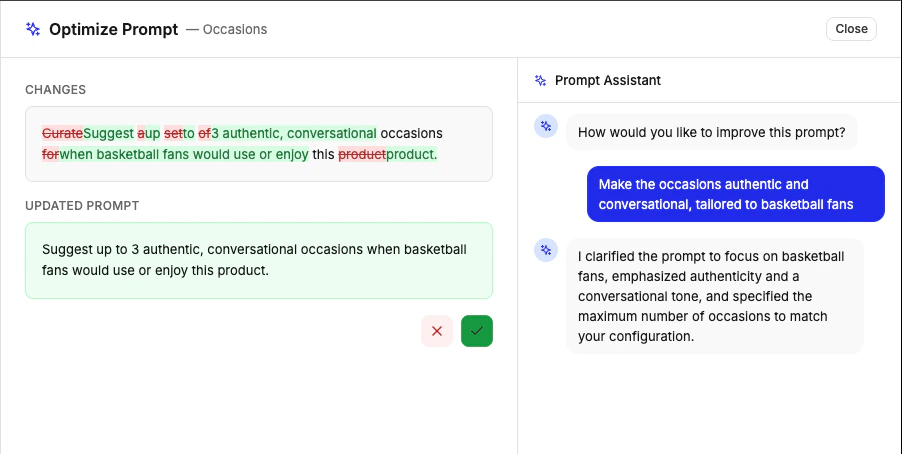
- Chat interface – Describe what you want the attribute to extract in natural language. The AI will suggest a prompt based on your description.
- Diff view – See your current prompt side-by-side with the suggested changes, making it easy to review improvements.
- Context awareness – The optimizer analyzes sample products from your sheet to tailor suggestions to your actual data.
- Open the Prompt Optimizer by clicking Optimize or pressing K
- Describe what you want the attribute to capture (e.g., “Extract the product weight in pounds, including the unit”)
- Review the suggested prompt in the diff view
- Click Accept to apply the suggestion, or provide more feedback to refine it further
- Click Reject to discard a suggestion and try a different approach